



5.Project Management
5.1.General Information
While working in Sindy, the user can create, modify, or delete data. To make it possible to restore the workspace with user data at any time the next time the program starts, the program can save this data to project files and restore it from such files. The following operations are available to the user as part of project management:
- Creating a new project
- Opening an existing project
- Saving open-project data to the current project file
- Saving open-project data while specifying a project file
- Closing the open project
5.2.Creating a New Project
Creating a new project may be useful in various situations. For example, if you are just beginning to work with the program, the first thing you need to do is create a new project. If the current project has become too large because it contains many tests, however, it may sometimes be more convenient to create a new project and continue working with two projects in parallel.
In addition, you can create a new project containing only the tests relevant to certain users and then provide this project to those users for their work.
If a project containing unsaved user changes is already open when the function for creating a new project is invoked, the program prompts the user to save those changes before creating the new project.
A new project can be created using the main menu command “File → New” or the toolbar button 
in the program’s main window.
5.3.Opening an Existing Project
Opening an existing project is necessary to restore the workspace from a project file and continue working with previously saved data.
If a project containing unsaved user changes is already open when the function for opening an existing project is invoked, the program prompts the user to save those changes before opening the new project.
When projects saved in older versions of Sindy are opened, you may be prompted to update the project file being opened. This operation is necessary because the format of saved data may change when new releases are issued as Sindy functionality is improved. An existing project can be opened using the main menu command “File → Open…” or the toolbar button 
in the program’s main window. When a project is opened, the program displays the “Open Project” window.
The primary purpose of the “Open Project” window is to allow the user to select a particular previously saved project file and access its data.
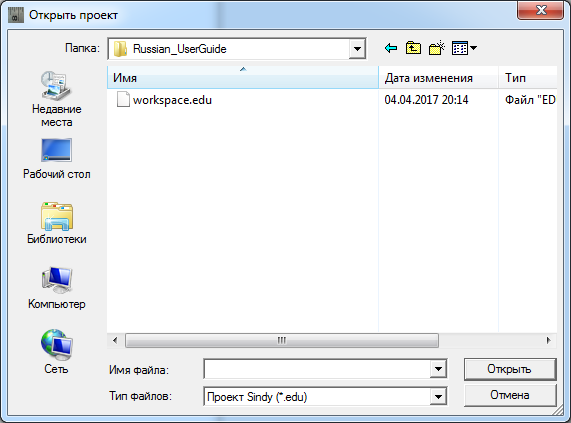
To open the required project file, specify its name in the “File name” field. You can enter the full path to the file or use the “Folder” drop-down list and the “Recent Places”, “Desktop”, “Libraries”, “Computer”, or “Network” buttons to locate the file. The “Files of type” drop-down list can be used to enable or disable file filtering by the standard file extension for Sindy projects.
Click “Open” to confirm opening the selected project file or “Cancel” to cancel the operation and close the current dialog.
5.4.Saving Open-Project Data to the Current Project File
Sindy makes it possible to save the data of an open project to the current special-format file with the EDU extension.
If the project-saving operation is invoked for a newly created project that has not yet been saved, the program automatically begins the operation of saving the open-project data while specifying a project file.
Open-project data can be saved to the current project file using the main menu command “File → Save” or the toolbar button 
in the program’s main window.
5.5.Saving Open-Project Data While Specifying a Project File
Saving open-project data while specifying a project file may be necessary if you need to save the data of a newly created unsaved project or duplicate project data in a new project file.
When this operation is performed, the program prompts you to specify the name of the project file in which the changes should be saved.
It should be noted that this operation makes it possible to distribute tests you have created. To do this, simply save the current project to a new project file and then delete unnecessary data from the second project. The new file can then be provided to other users, who only need to open the project from that file to work with its data.
Open-project data can be saved while specifying a project file using the main menu command “File → Save As…” or the toolbar button 
in the program’s main window.
The primary purpose of the “Save Project” window is to allow a particular file to be specified for saving the current project.

To save project data to a project file, specify its name in the “File name” field. You can enter the full path to the file or use the “Folder” drop-down list and the “Recent Places”, “Desktop”, “Libraries”, “Computer”, or “Network” buttons to locate the file. The “Files of type” drop-down list can be used to enable or disable file filtering by the standard file extension for Sindy projects.
Click “Open” to confirm saving the selected project file or “Cancel” to cancel the operation and close the current dialog.
If saving to an existing project file is confirmed, an additional “ ” dialog appears in which you must either confirm replacement of the selected file or cancel it.

If a nonexistent project file is specified, the file is created and the current project data is saved to it.
5.6.Closing the Open Project
Closing the open project is used when you need to finish working with the current project.
If the project contains unsaved changes when the close-project function is invoked, the program prompts the user to save them before closing the project.
The open project can be closed using the main menu command “File → Close” or the toolbar button 
in the program’s main window.