



8.Test Reports
8.1.General Information
The results of any testing session can be evaluated using test reports. Test reports are created as text and can be opened in any text editor.
Test reports can be created on the final test screen after testing is complete. At present, Sindy can create the following types of test reports:
Selecting the appropriately named context-menu command on the final test screen starts the wizard for creating the required report.
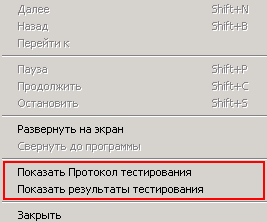
Starting the report-creation wizard opens the “Report Settings” window.
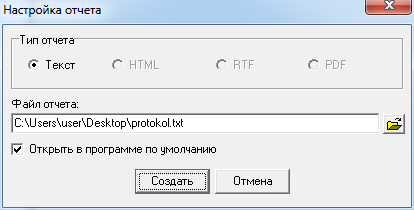
The “Report type” group in the report-settings window shows a list of available report types. In the current version of Sindy, reports can be presented only as plain text.
In the “Report file” field, enter the name of the report file in which the report will be saved, including its full path. For convenient folder selection, use the button 
. This opens an additional “Save As” window that allows the report path and file name to be specified visually.
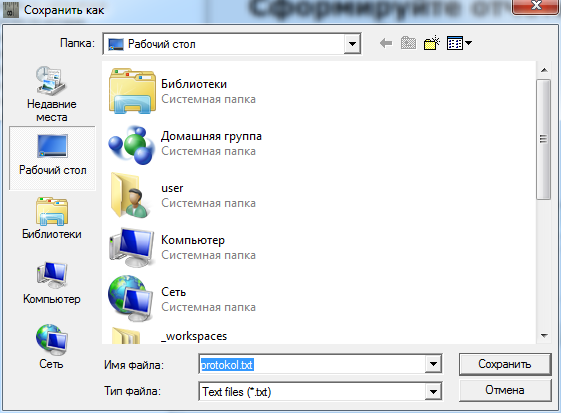
To select the report file, specify its name in the “File name” field. You can enter the full path to the file or use the “Folder” drop-down list and the “Recent Places”, “Desktop”, “Libraries”, “Computer”, or “Network” buttons to locate the file. The “Files of type” drop-down list can be used to enable or disable file filtering by the standard file extension for Sindy reports.
Click “Save” to confirm creation of the report with the specified file name or “Cancel” to cancel the operation and close the current dialog.
It is recommended to give meaningful names to files containing test reports. This makes it easy to navigate them when there are many reports.
If the “Open in default program” option is enabled in the report-settings window, the new report is immediately opened in the program registered on your computer for working with plain-text files. In most cases, this will be the Windows “Notepad” application.
Click “Create” to confirm the report-creation procedure, or “Cancel” if the report does not need to be created.
8.2.Test Protocol
The Test Protocol contains the following data:
- Testing date
- Test name
- List of test questions
- List of answers for each question, indicating (with the word “selected”) the answers selected by the user during testing
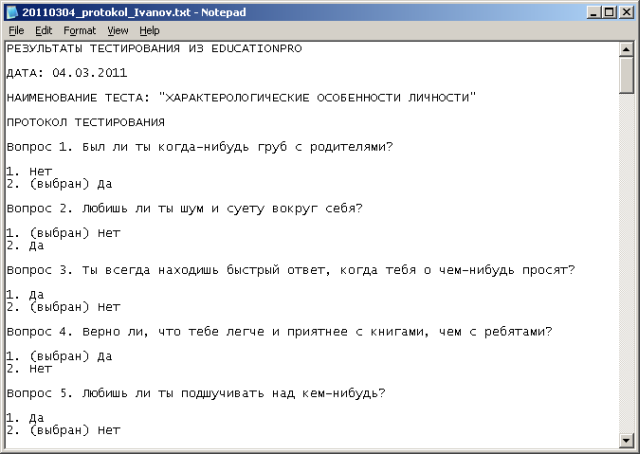
It should be noted that for questions and answers for which descriptions were added when the test was created, the Test Protocol displays those descriptions rather than the names.
This text report can be additionally edited by the user in a text editor and saved in the required form.
8.3.Test Results Report
The Test Results Report contains the following data:
- Testing date
- Test name
- List of test scales with a score for each scale
- A text interpretation corresponding to the result obtained on each scale
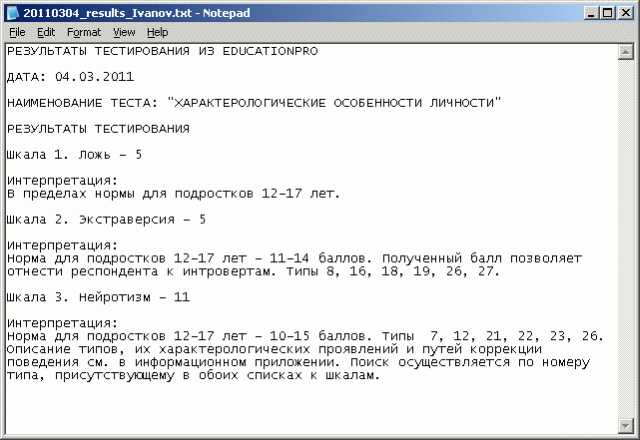
It should be noted that for scales and interpretations for which descriptions were added when the test was created, the Test Results Report displays those descriptions rather than the names.
This text report can be additionally edited by the user in a text editor and saved in the required form.